See every RecipeAI feature

RecipeAI · RecipeAI feature guide

How to use your shopping list

Add products yourself or from saved recipes, edit amounts, check off what you bought and send a copy of the list to someone else.

Download RecipeAI

Follow these steps

Shopping list

Add an item manually

  1. Open “Shopping” in the bottom navigation. Find “Add item...”, the text box beside the cart symbol, and tap it.

  2. Type a product, for example 2 cartons of milk. Tap the blue + beside the text box.

  3. Find the new product under its category. Tap its pencil if you want to change the name or quantity.
Add ingredients from a recipe

  1. Open “Library” and choose the recipe you want from the list.

  2. Inside the recipe, scroll through “Ingredients” to the end of the ingredient list. The “Add to Shopping List” button appears directly below it, before the preparation instructions.

  3. Tap “Add to Shopping List”. It adds the recipe’s ingredients; the ingredient checkboxes do not select a subset to transfer.

  4. If you already have a shopping list, read the confirmation and tap “Continue” to add to it, or “Cancel” to stop.

  5. Open “Shopping” in the bottom navigation to see the ingredients added from the recipe.

Change quantity or category

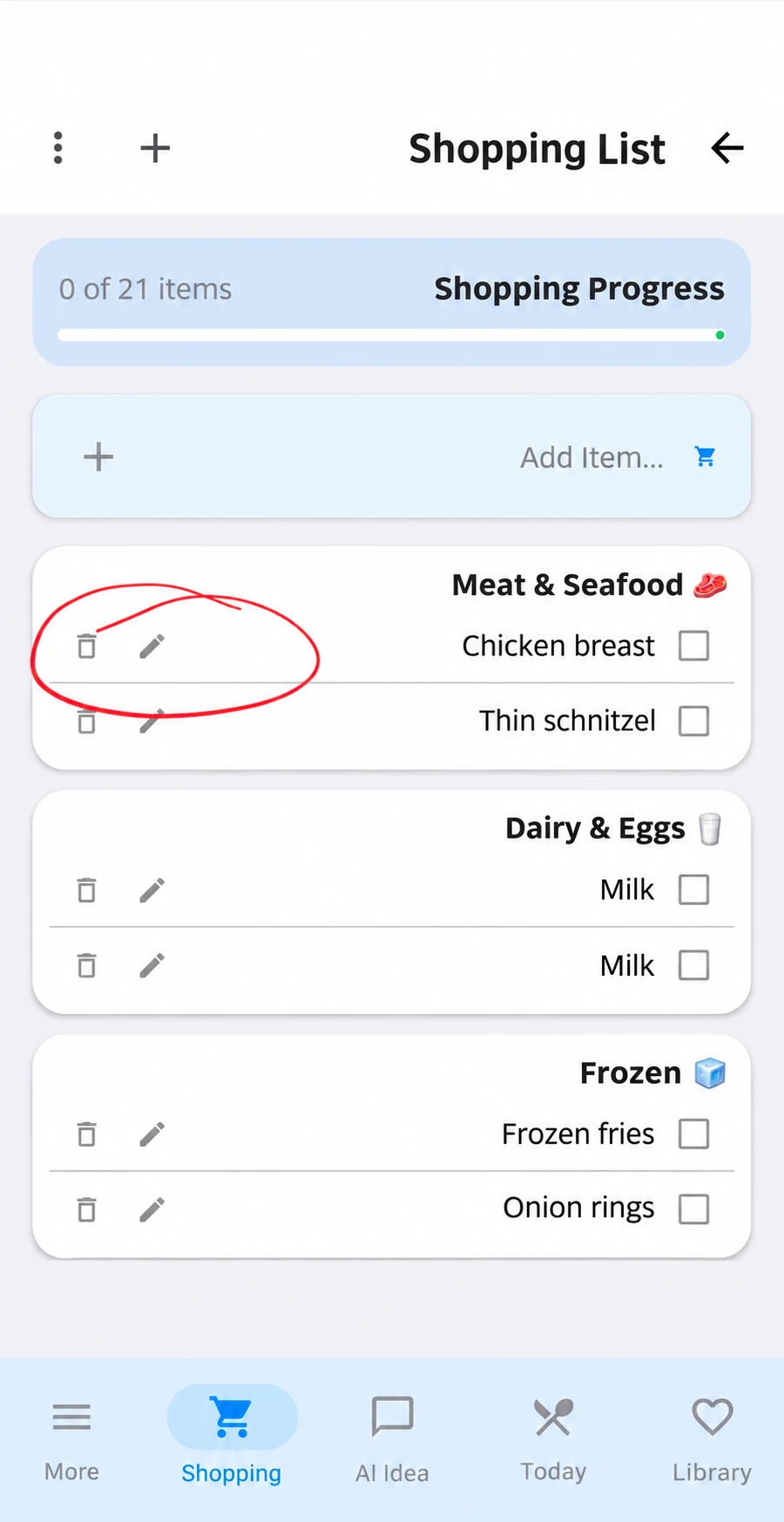
  1. Find the product in “Shopping” and tap the pencil on its row.

    Find the product in “Shopping” and tap the pencil on its row.
    Translated guide illustration based on a real screenshot; not a native capture · 1
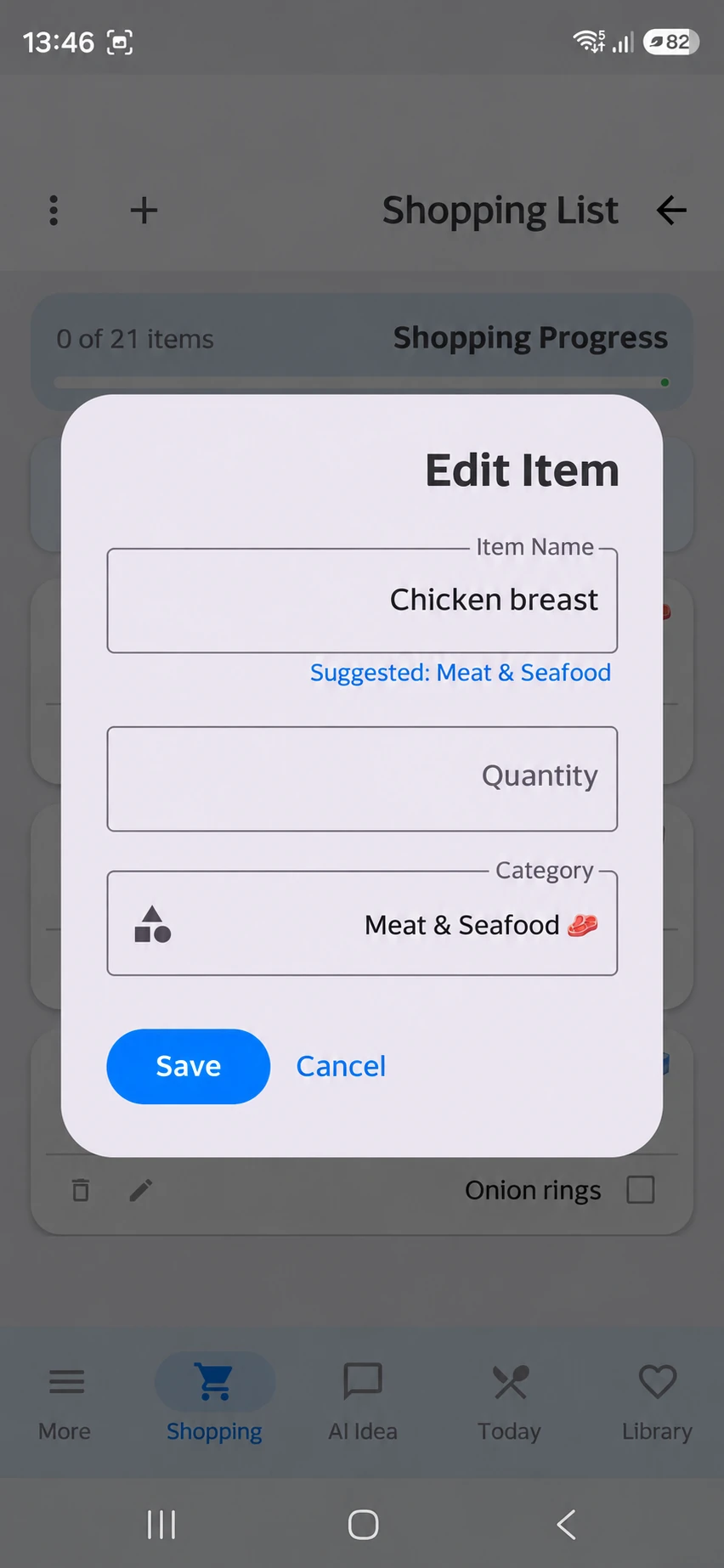
  2. In “Edit Item”, change “Item Name” or “Quantity”. Tap “Category” to move it to another section.

    In “Edit Item”, change “Item Name” or “Quantity”. Tap “Category” to move it to another section.
    Translated guide illustration based on a real screenshot; not a native capture · 2
  3. Tap “Save”. The updated product stays in your shopping list.

Mark products as bought

  1. In “Shopping”, tap the square next to a product you have bought.

  2. The product is crossed out. Tap its square again to put it back among the items still to buy.

  3. Keep checking products as you shop. Crossing one out does not delete it.

Delete one item

  1. Tap the trash icon on the row of the product you want to remove.

    Tap the trash icon on the row of the product you want to remove.
    Translated guide illustration based on a real screenshot; not a native capture · 1
  2. Check that the confirmation names the right product.

  3. Tap “Delete” to remove this item, or “Cancel” to keep it.

Move a product to another category

  1. Tap the pencil on the product row.

    Tap the pencil on the product row.
    Translated guide illustration based on a real screenshot; not a native capture · 1
  2. In “Edit Item”, open “Category”.

    In “Edit Item”, open “Category”.
    Translated guide illustration based on a real screenshot; not a native capture · 2
  3. Choose the category where you want to find the product while shopping.

  4. Tap “Save”. The product moves to that category.

Alternative: add several recipes from Shopping

  1. In “Shopping”, tap + in the top bar, then “Add from Recipes”.

  2. Select the recipes you want to shop for.

  3. Tap the bottom button showing the number of selected recipes. Review the products added to your list.

Delete the entire shopping list

  1. In “Shopping”, open the three-dot menu at the top and choose “Delete Entire List”.

  2. This removes the whole list, not just checked products. Check before confirming.

  3. Choose “Delete All” to empty the list, or “Cancel” to leave it unchanged.

Share a copy through WhatsApp

  1. In “Shopping”, open the three-dot menu at the top and tap “Share List”.

  2. Choose WhatsApp, select the person and send the prepared message.

  3. The recipient opens the link and confirms “Import List” in RecipeAI. They receive a copy, not access to edit your list.

Frequently asked questions

Can I add non-recipe items?

Yes. Add household or grocery items manually and edit their category.

Does sharing let someone edit my list?

The recipient imports a clean copy. Their changes do not modify your original list.

Can I combine several recipes?

Yes. Shopping lists can collect ingredients from multiple saved recipes or a meal plan.